 Back to Blog
Consider a contact who fills out a form. A rep calls, no one picks up, and the status changes to “left message, not answered.” If nothing else is built into the process, that is the end of the contact’s journey. The lead qualified well enough to get a call, but no email follows, no task comes due, and nobody has decided whether they should hear from you again next week or next quarter.
Marketing automation lead management is how you prevent that. It covers the stretch between a lead qualifying and being ready for sales, including how their treatment changes along the way and when it ends. The examples below follow an invented food business (no client is involved) that sells burgers, pizza, salads, and açai bowls, which keeps the HubSpot setup easy to follow.
Key Takeaways
- Build a default path for leads that match no segment, or they receive nothing.
- A workflow goal stops nurture emails once a lead replies or books, but re-enrollment is a separate setting to decide on purpose.
- HubSpot’s tools only move lifecycle stage forward unless you clear it first, so plan how recycled leads are tracked before you build.
- Judge each path by how many leads convert and how many finish without engaging, since open rates alone don’t show movement.
What Is Marketing Automation Lead Management?
Marketing automation lead management is the practice of using automation to decide how each lead is treated after it qualifies and before sales engages: which nurture path it enters, what moves it forward or back, and when marketing stops contacting it. It sits between lead qualification and the marketing-to-sales handoff.
Our position: Every lead should sit in exactly one state, and every state should name who or what acts next and when the lead moves on. Leads stall where either is missing.
That scope is narrower than most definitions. Capturing and qualifying a lead happens earlier, and our guide to building a lead generation workflow covers it. What happens once a rep accepts or rejects a lead belongs to the handoff, which we cover in fixing the marketing-to-sales handoff in HubSpot. Lead management is the middle stretch, where a contact fits your ideal customer but isn’t ready to talk, and where a lead can sit untouched indefinitely unless a rule says otherwise.
Define Four Lead States Before You Build Any Workflows
Each lead should sit in one state at a time. Each state needs a rule for entering it and a rule for leaving it, with a defined treatment in between. When either rule is missing, leads pile up in that state with nobody responsible for them.
These four are a starting point. A business with a long sales cycle might split Nurture into early and late stages, and one with a short cycle may not need Recycle at all. What matters is that no lead can enter a state without a way out of it.
None of HubSpot’s default properties maps cleanly to these four states, so create one. A single-select dropdown property, such as “Nurture status,” holds exactly one value at a time, and workflows can enroll, branch, and exit on it. Keep it separate from the two properties HubSpot already provides. Lifecycle stage tracks where a contact sits across marketing and sales, and lead status holds the sub-stages inside Sales Qualified Lead, such as Attempted to Contact and Bad Timing. Those two describe the revenue journey and the sales motion. Nurture status describes what marketing is doing with the lead and why.
How to Decide Which Nurture Path a Lead Enters
Entry rules can only evaluate data you actually have. HubSpot’s default fields show where a contact came from and what lifecycle stage they hold, but they don’t show what the person wants. Ask what single piece of information about a new lead isn’t captured by default, then create a custom property for it. HubSpot’s documentation walks through the setup.
For the food business, the added form question is “What is your favorite food?” The answer is stored in a dropdown property with four options, and each nurture path keys off it. Keep the form short, since every extra field costs completions.
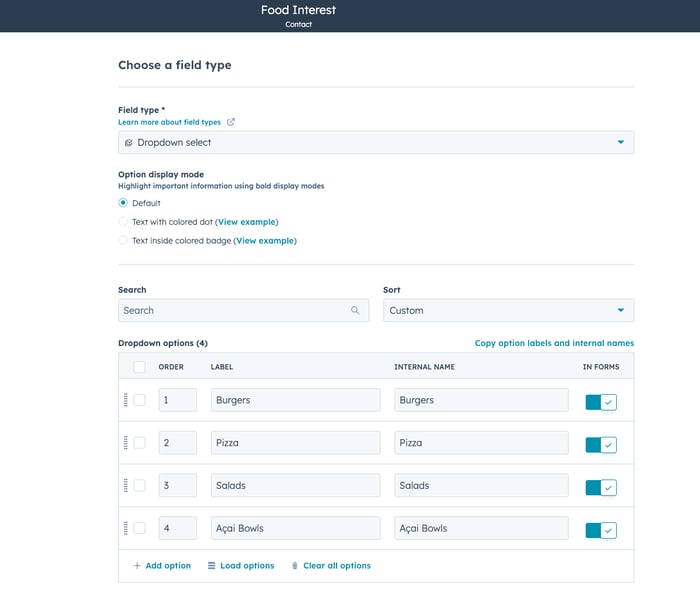
A dropdown property with four options (Burgers, Pizza, Salads, Acai Bowls) supplies the interest data each path depends on.
Interest is one input, and source is another. Contacts from a trade show and contacts from a webinar may need different reps or different follow-up. That rule has nothing to evaluate unless the source is recorded when the contact is created.
With the data in place, build the branches. In the workflow below, a form submission enrolls the contact, and the workflow splits on the favorite-food property: one branch for pizza and burgers, one for salads and açai bowls. A third branch catches everyone who matches neither. That default path matters as much as the other two, because a lead with a blank or unexpected value would otherwise match nothing and receive nothing.
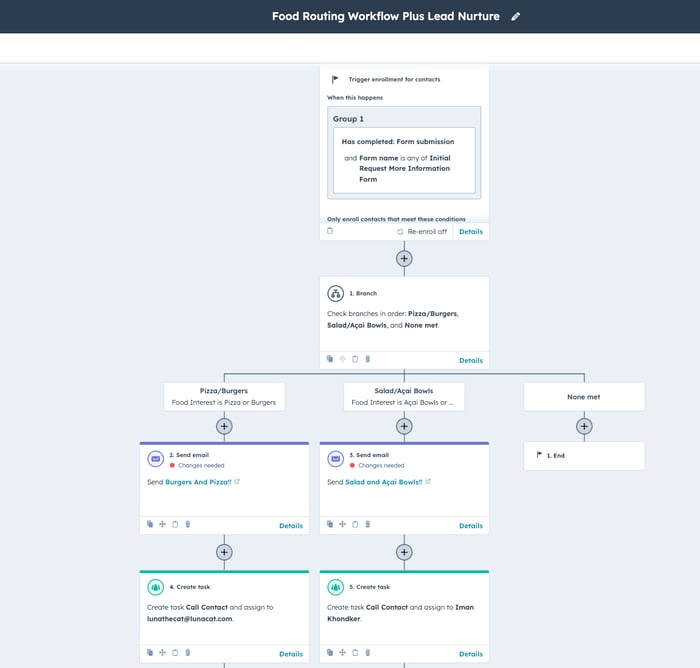
Each branch sends emails and creates a task for the matching sales team. Marketing’s part ends where that task begins.
The task creation inside each branch is the start of the handoff, which we cover in fixing the marketing-to-sales handoff in HubSpot.
The alternative to a workflow is sorting new contacts by hand, which is the equivalent of printing a lead out, walking it to the next building, finding the right rep, and never learning whether the call led to a sale. A workflow does the same routing consistently, in the background, at any hour. Reps still make the calls. Automation removes the step where a lead waits for someone to notice it.
How to Match Lead Treatment to What Each Segment Wants
Lead segmentation divides contacts into groups by shared characteristics, such as interest, source, or behavior, so that each group receives different messaging. In lead management, segments decide which emails a lead receives, how often, and who follows up.
A contact who said they like salads shouldn’t be getting emails about burgers and pizza. They will unsubscribe, and every send before that point is wasted. The same logic applies in reverse for the pizza lead receiving açai bowl promotions.
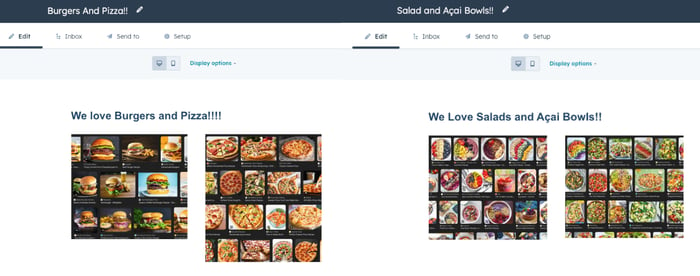
Two templates for the same business, one for the burgers-and-pizza segment and one for salads-and-açai-bowls.
Here is the full path for a salad lead. They submit the form and receive an email noting that salads are a favorite and that açai bowls are also on the menu, with a line that a rep will be in touch shortly. The workflow creates a task for the salad and açai team. A rep calls and no one answers, so the call outcome is logged as “no answer.”
That outcome is what keeps the journey from ending. It sends the contact down the nurture branch: a few emails about their specific interest, an offer or two, and content about related items, such as a new smoothie. Because interest is stored as a property, it can also feed reporting later, for instance to see what else salad leads tend to buy.
Interest is only one trigger. HubSpot workflows can also enroll or branch contacts based on what they do, such as submitting a form or engaging with an email, so a lead’s path can change as their behavior does. Readiness signals like these usually feed a scoring model, and our HubSpot lead scoring guide covers how to build one.
When Should Lead Nurturing Stop?
Nurturing should stop when a lead takes the action the path was built to produce, when they stop being eligible, or when the path runs out. In a contact-based HubSpot workflow, unenrollment settings can remove contacts through a workflow goal, a suppression segment, or a setting that removes contacts who no longer meet the enrollment criteria.
Start with the goal. Suppose the salad lead replies to the first nurture email after that “no answer” call. The remaining emails are now irrelevant and possibly irritating. Setting the workflow goal to “book a meeting” or “reply to an email” removes the contact from the workflow as soon as either happens, and the remaining nurture emails never send. HubSpot’s page on using goals in contact-based workflows covers the setup.
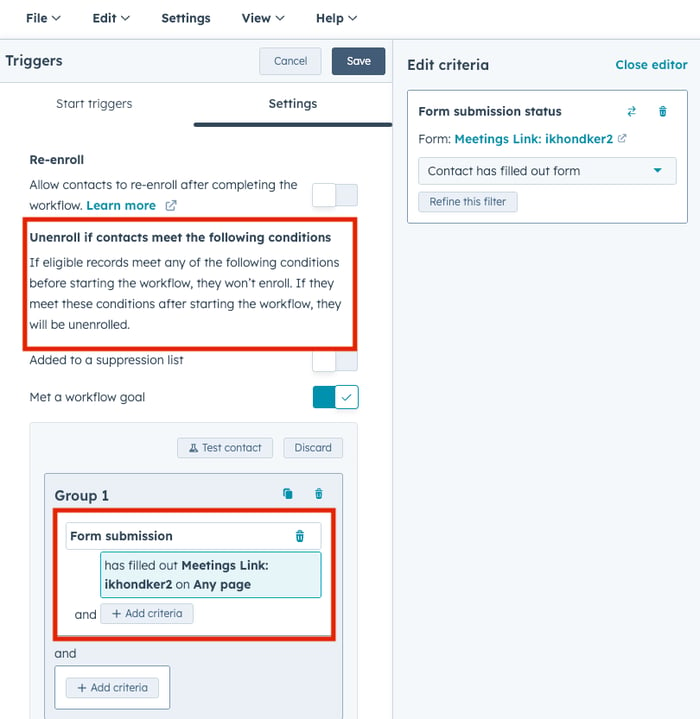
Unenrollment conditions sit alongside the enrollment and re-enrollment settings in the workflow trigger.
A goal removes a contact from a workflow, and whether they can come back depends on the re-enrollment setting. By default, HubSpot enrolls records only the first time they meet the enrollment triggers. With re-enrollment turned on, a contact who meets a selected trigger again starts the workflow over from the beginning, but only after they have exited it. A suppression segment or unenrollment trigger can still keep specific contacts out. Suppression segments have a quirk worth knowing: contacts removed from one aren’t enrolled automatically, but become eligible the next time they meet the enrollment or re-enrollment criteria.
So decide re-enrollment on purpose. If a salad lead goes quiet for six months and then fills out the form again, should they enter the salad path a second time? There are good arguments on both sides, and the answer should be written down before the workflow goes live.
If you run more than one nurture workflow, build the sales exclusion once. Create a segment of contacts a rep is actively working, then add it as a suppression segment in each nurture workflow, so a lead who reaches sales leaves every nurture at the same moment. HubSpot’s enrollment settings note that unenrollment criteria also prevent matching records from enrolling in the first place, so the same rule keeps a lead from entering a nurture while a conversation is already underway.
What Happens to Dormant and Returned Leads?
Leads that go quiet, or come back from sales as not ready, need a path of their own with defined entry criteria and a point where it ends. Without one, they either stay in an active nurture indefinitely or sit in the database with no further treatment.
Take the salad lead who finishes the nurture path without opening or clicking anything. That contact moves to the Recycle state, where the cadence drops and the content shifts toward reengagement: a different angle, or a plain question about whether they still want to hear from you. Decide the number of sends in advance. When the path ends with no response, the contact stops receiving marketing email rather than looping back to the start.
Leads returned by sales follow a related logic. A salad lead that a rep marks as not ready should rejoin the salad path at an appropriate point rather than restarting the whole sequence, and the reason sales gave determines where. Capturing those reasons consistently is part of the handoff, covered in [fixing the marketing-to-sales handoff in HubSpot].
One HubSpot behavior to plan around: automatic updates to the default lifecycle stage property only move a contact forward. HubSpot’s lifecycle stage documentation states that to set a stage backward through a workflow, import, form, or API, you first have to clear the record’s existing lifecycle stage value. A recycle workflow that simply tries to set a contact back to an earlier stage will not behave the way you expect.
There are two ways to handle this. You can clear the value and then set the earlier stage, or you can leave lifecycle stage alone and track recycle status in a separate property. Each has different consequences for reporting, so test on a small group of contacts before applying either one across the database.
How to Tell Whether Lead Management Is Working
Measure each path, not just each email. Open and click rates tell you whether a message was read. Path-level numbers tell you whether leads are moving, and where they stop.
For each nurture path, track:
- How many contacts enter, and from which source
- How many leave by meeting the goal, and how many reach sales-ready
- How many reach the end without engaging
- How many unsubscribe along the way
A path where many contacts reach the end without engaging points to a content or targeting problem. A path where few contacts ever enter points back to the entry rules. If leads move through marketing quickly but stall after sales takes over, the issue sits downstream; our guide to deciding what to fix first in your sales process can help isolate it, and what is deal velocity? covers measuring the time involved.
If your leads are stalling between the form fill and the sales call, Hypha’s HubSpot platform specialists can map your lead states and build the workflows behind them, along with the inbound marketing and strategic content that feeds each path. Contact our team to get started.